Thursday, 30 April 2015

Dominoes, triominoes, world loops and more: Formulator Tarsia

A very quick post to let you know about some fantastic free software for Windows computers.

Formulator Tarsia, available free of charge from http://www.mmlsoft.com/index.php/products/tarsia, provides an interface to quickly and easily create a variety of card sort and jigsaw activities and puzzle games. Just type in terms and definitions, or questions and answers and the program will create your puzzle which can be exported to pdf for printing.
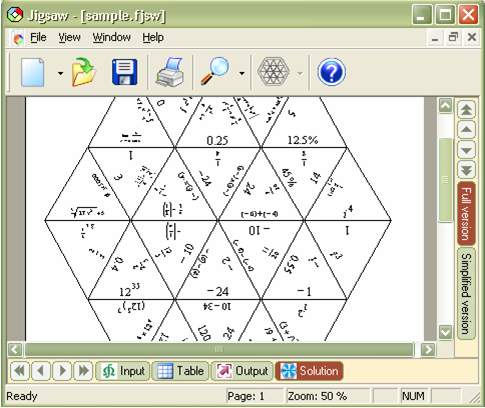
Formulator Tarsia allows for easy formatting of mathematical formula or insertion of images.

Revision: Quizlet- flashcards and more

A quick post on one of my favourite eLearning tools for revision: Quizlet.com.

Quizlet is, in essence, a flash card based revision tool; of which there are many. However, what I really like about Quizlet is how you can use your 'deck' in so many different ways to revise. You can also embed the applet into webpages, like below:


Try using the drop-down menu at the bottom right of the embed to switch to the 'Test' and 'Scatter' Study Modes.

As you can see, when embedded Quizlet decks can be used without the need for a login, but with a free account students can search and add other decks to their library, create their own card sets or even set up a Class to share decks and compete with each other to top the leaderboard in the 'Scatter' or 'Space Race' study modes.

There are many sets of terms and defintions already on QUizlet but creating your own is very easy too. Images can also be included if needed.

Embedding the Quizlet applet into a page on Moodle is very simple:

  • Open the 'deck' on the Quizlet website
  • Click on 'More...' in the tools section of the menu bar and select 'Embed'
  • Select and copy the text in the box next to your preferred Study Mode
  • Go to your Moodle course and click the 'Add and Activity or Resource' link
  • Scroll down to and click 'Web Page'
  • Click the small 'HTML' button on the window that opens and paste the copied text here
  • Type a title and short description in the relevant areas then save your web page

If necessary I can create a short video showing the whole process - just email me to ask

Wednesday, 11 March 2015

Names and class lists in Excel

Easily change formatting of names in Excel sheets


Surname, Forename or Forename Surname? ...or even First name and Surname in separate columns?
We all have our preferences but unfortunately so do the different software packages we use.

This post shares some Excel formulas to quickly and easily switch around the formatting of names.
The formulas used are summarised in the image below:
Click to enlarge

The first formulas search for a comma and return the characters on either the left (for surname) or the right (for first name). Just change the cell reference to point to the cell with Surname, Forename.

For surname:     =LEFT(A2,(FIND(",",A2)-1))
For forename:     =RIGHT(A2,(LEN(A2)-1-FIND(",",A2)))

The next formula will take a forename and a surname from separate cells and join them to Forename Surname:     =B2&" "&C2

If you want to take forenames and surnames from separate cells and output as Surname, Forename use:     =C2&", "&B2

And finally to convert Forename Surname to Surname, Forename:     =RIGHT(D2,(LEN(D2)-FIND(" ",D2)))&", "&LEFT(D2,(FIND(" ",D2))).

Try this out with this example spreadsheet (be aware this is LIVE and shared publicly!)